The hardware display is a small screen mounted in the vehicle and connected to the pump.is device itself. It provides the same core controls as the mobile app — no wireless connection needed.
Controls
The display is operated with a single rotary encoder (knob):
- Rotate left/right — adjust values or navigate menu items
- Short press — confirm or select
- Long press — open the menu (from main screen) or go back to the main screen (from anywhere else)
Main screen
When powered on, you’ll see the main screen.
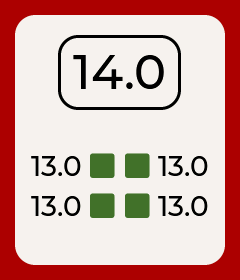
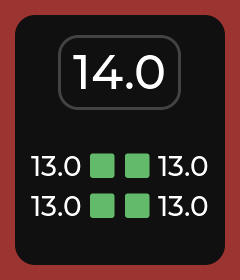
The center shows the target pressure for all tires. Below it, each tire is displayed with its current measured pressure and a status icon (green square = idle).
The border color tells you the system state:
- Red — inactive (not inflating or deflating)
- Blue — active
Adjusting the target pressure
Rotate the knob to change the target pressure. The target turns orange to indicate an unsaved change.
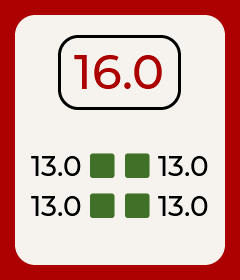
Press the knob to confirm the new value.
Activating the system
Long press to open the menu. The first item is Activate.
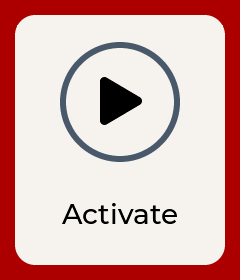
Press to activate. The border turns blue and the system begins working toward your target pressure.
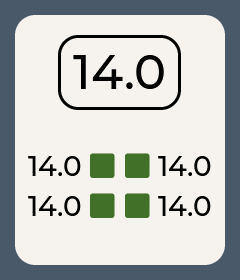
To deactivate, open the menu again — the first item will now say Deactivate.
Menu
Long press from the main screen to open the menu. Rotate to browse items and press to select. The menu contains:
- Activate / Deactivate — toggle the system on and off
- Airpads — set airpad mode (only shown if your system has airpads)
- Brightness — adjust screen brightness
- Dark Mode — switch between light and dark themes
- Advanced — tire lock, rear delta, Bluetooth, and screen rotation
- Exit — close the menu
The menu is closed with a long press, and auto-closes after 10 seconds of inactivity.
Warnings and alarms
If the system raises a warning, an orange warning icon appears on the main screen.
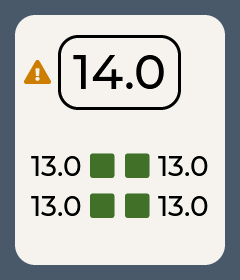
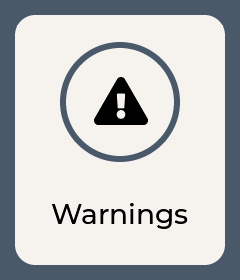
To see what the warning is about, open the menu. A Warnings item will appear — select it to view the details.
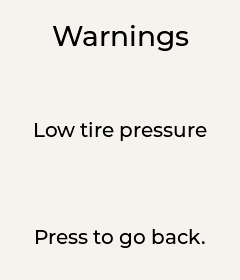
Some warnings trigger an alarm. When this happens, a full-screen alarm overlay appears.
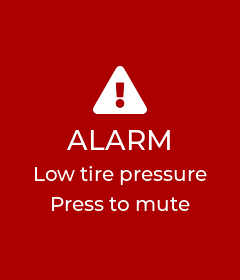
Any input (rotate or press) mutes the alarm and returns to the main screen. If the warning condition persists, the warning icon will remain visible but the alarm won’t sound again unless a new warning condition is triggered.
Settings
Brightness
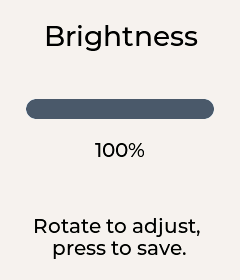
Navigate to Brightness in the menu. Rotate to adjust, press to save.
Dark Mode
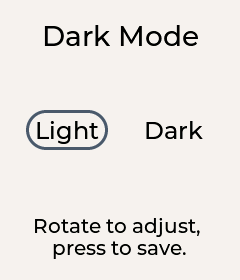
Navigate to Dark Mode in the menu. Rotate to switch between Light and Dark, press to save.
Here’s what the main screen looks like in dark mode:
Advanced settings
Navigate to Advanced in the menu to access additional settings.
Locking tires and airpads
You can lock individual tires (and airpads, if your system has them) so they’re left alone by the system. This is useful if you’ve closed off a tire or want to exclude it temporarily.
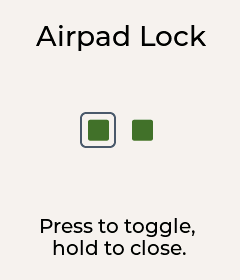
Navigate to Tire Lock (or Airpad Lock) in the Advanced menu. Rotate to highlight an item, press to toggle its lock. Long press to go back.
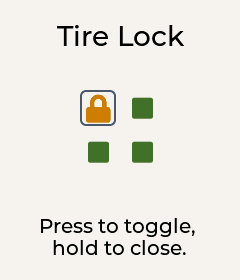
Locked tires and airpads show a lock icon on the main screen. The lock color tells you the status:
- Orange lock — locked (paused, system will leave it alone)
- Red lock — locked and alarming (pressure is outside the safe range)
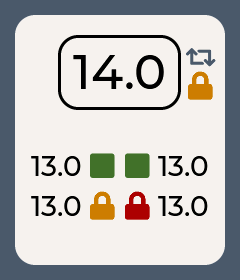
In the screenshot above, the bottom-left tire and the airpad (top-right) are locked (orange), while the bottom-right tire is locked and alarming (red).
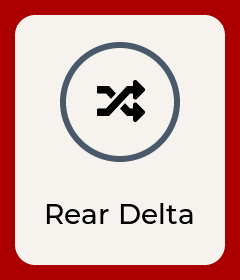
Rear Delta
Set a pressure offset between front and rear tires. For example, a delta of +2.0 means the rear tires target 2.0 PSI above the front tires.
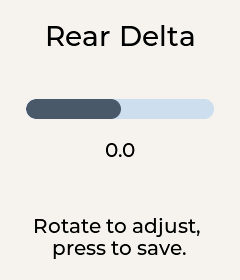
Rotate to adjust, press to save.
Bluetooth
Enable or disable the Bluetooth connection to the mobile app.
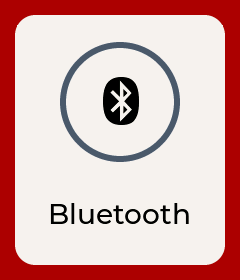
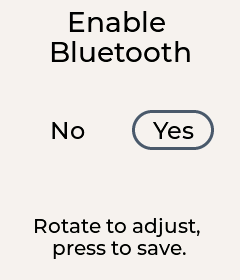
Note: this setting takes effect on the next restart of the device.
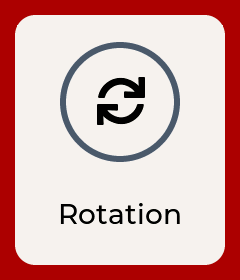
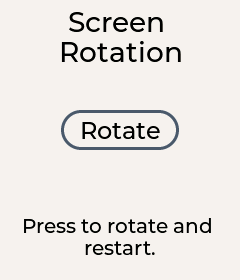
Screen Rotation
Rotate the display 180° if the device is mounted upside down.
Airpads
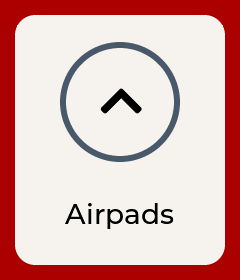
If your system has air suspension (airpads), an Airpads item appears in the menu. Select it to choose a mode:
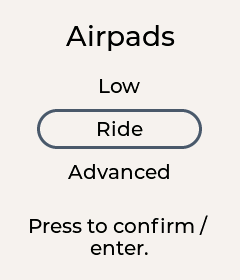
- Low — lower the suspension fully
- Ride — set to standard ride height
- Advanced — opens a slider for custom height (0–100%)
Rotate to highlight a mode, press to confirm.
If you have any feedback on this guide, please let us know via info@pump.is.