pump.is has three pieces of software: the mobile app, the main controller firmware, and—if fitted—the hardware display firmware. They update separately, but it is a good idea to keep them in step.
When an update is available
A red dot on the upload icon in the main screen header means an update is available for the app or main controller. Tap it to open Firmware updates.
The dot does not check the optional hardware display. If you have one, open Firmware updates occasionally and check its card too.
What the update screen covers
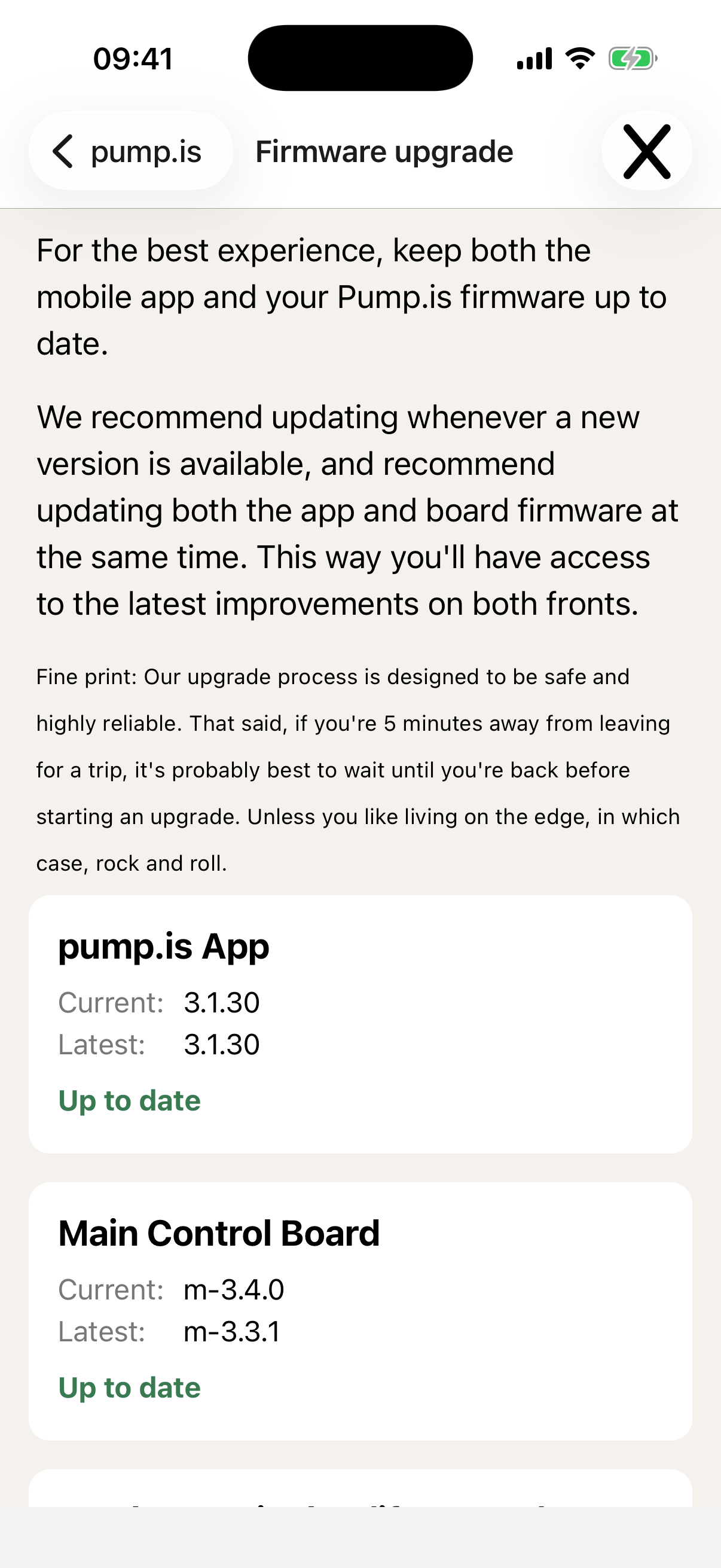
- pump.is App shows the installed and latest app versions. When an update is available, the button opens Google Play or the App Store.
- Main Control Board shows the connected controller’s current firmware and the latest available version. Connect to the controller first if the current version says Unknown.
- Hardware Display is collapsed by default. Ignore it if the vehicle does not have the optional display; otherwise expand it to start a display update.
Update the main controller or display
The flow is the same for both pieces of hardware:
- Choose the device. The main controller is normally already connected.
For a display update, select the display when it appears in the search.
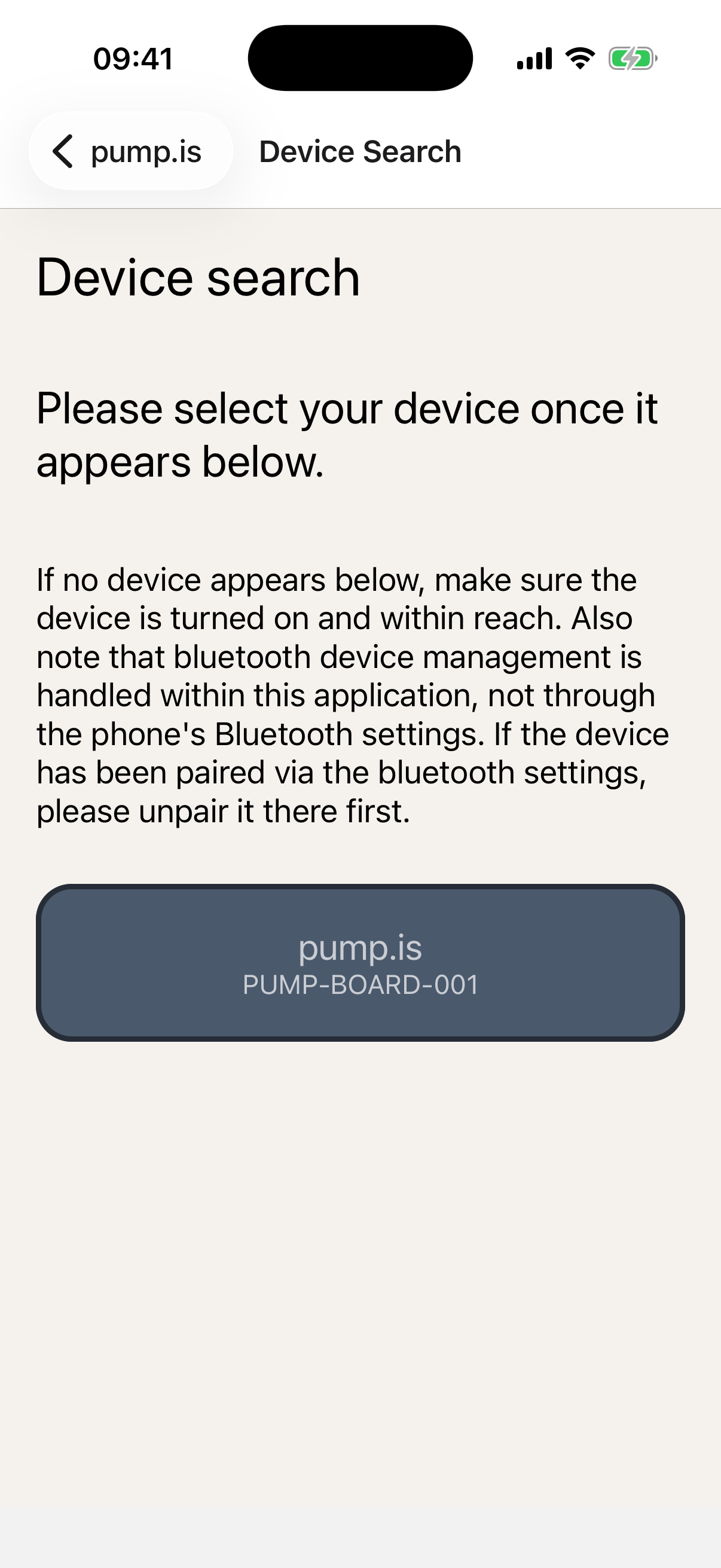
- Connect. A password-protected controller may ask for its password before continuing.
- Check the version. The app shows the current and available firmware. Tap Update firmware when you are ready.
- Let it write. The app downloads the firmware and transfers it to the device, showing progress and an estimated time once it has enough data.
- Restart and verify. Tap Reboot and verify! when asked. The device restarts and the app confirms that the new firmware is running.
- Return to the app. Tap Back to using the app! after the upgrade is confirmed.
If the device does not reconnect during verification, turn it off and on again. The update process is designed to fall back to the previously running firmware if the new one cannot be verified.
If an update still fails, email info@pump.is and include the device type and
the step where it stopped.
Check the installed versions
The Firmware updates screen shows the versions needed for an update. You can also find the app and connected controller versions at Settings → Version Information.