The everyday loop is simple: choose the pressure you want, activate the system, and let pump.is bring every unlocked tire to that target and keep it there.
Pressure controls
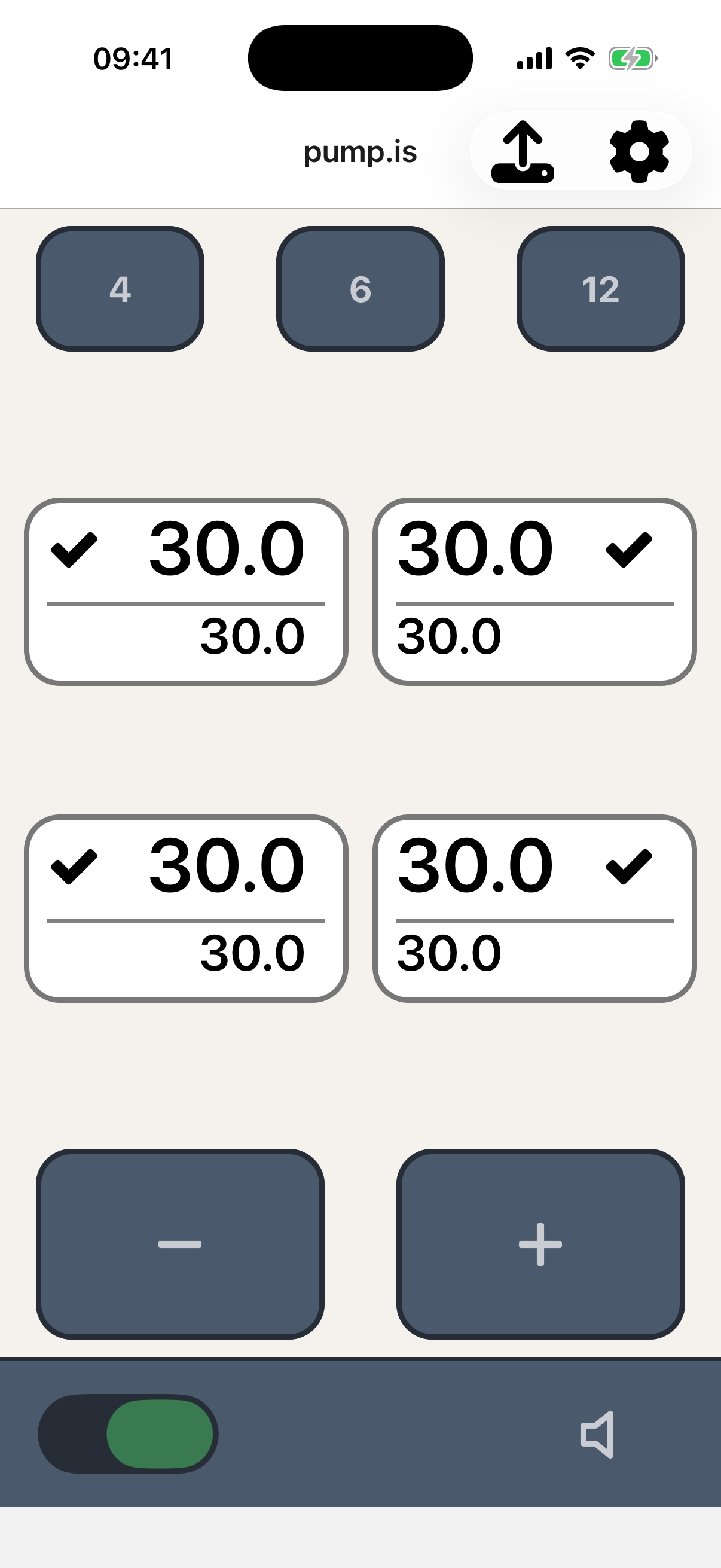
Use + and − near the bottom of the screen to change the target pressure. A tap moves it one step; press and hold either button to type an exact value.
At normal driving pressures the buttons move in 1 PSI steps. At low pressures they use finer steps, where a small difference matters more.
Each tire shows two numbers:
- The top number is the last measured pressure.
- The bottom number is the target.
By default, pressure changes apply to every tire. You can also select individual tires or lock one out.
Activation switch
The switch in the lower-left corner turns pressure control on and off. While the system is inactive it will not inflate or deflate, and the app background turns red as a reminder.
Set your target, then activate the system. An arrow shows whether each tire is inflating or deflating; during inflation the app also estimates the time left. A checkmark means that tire is at target and idle.
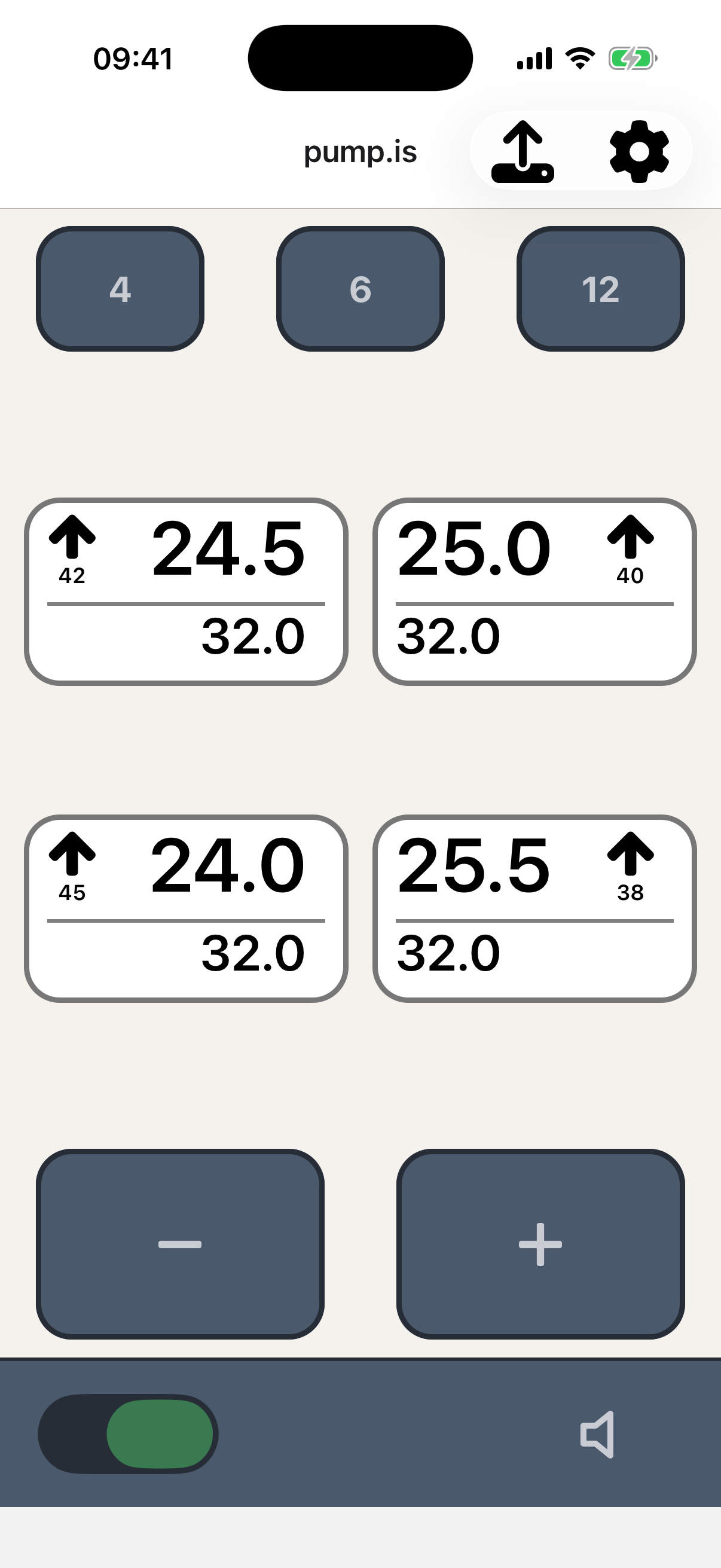
You may briefly see a question mark while pressure is being measured, or a raised hand while one tire is held back to let the others catch up. Both are normal.
Pressure presets
The three buttons at the top are shortcuts for pressures you use often.
- Tap a preset to apply it.
- Press and hold a preset to save a new value.
A road pressure and a soft-ground pressure are a useful place to start. If you do not use presets, hide them under Settings.
Warnings
An amber triangle at the bottom means the controller has something to tell you. Tap it to see the active warnings. A tire in an alarm state is also shown in red, so you can see which one needs attention.
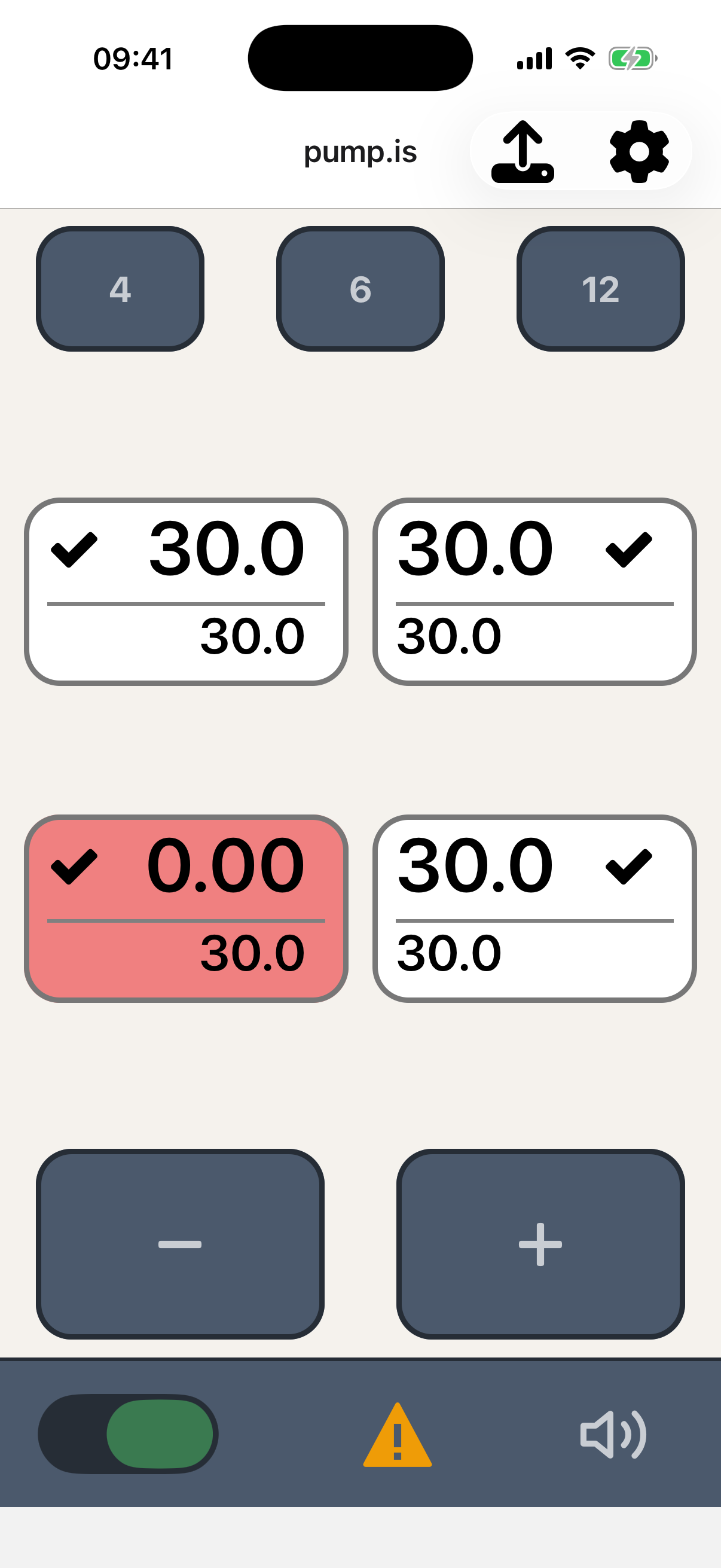
A tire in alarm
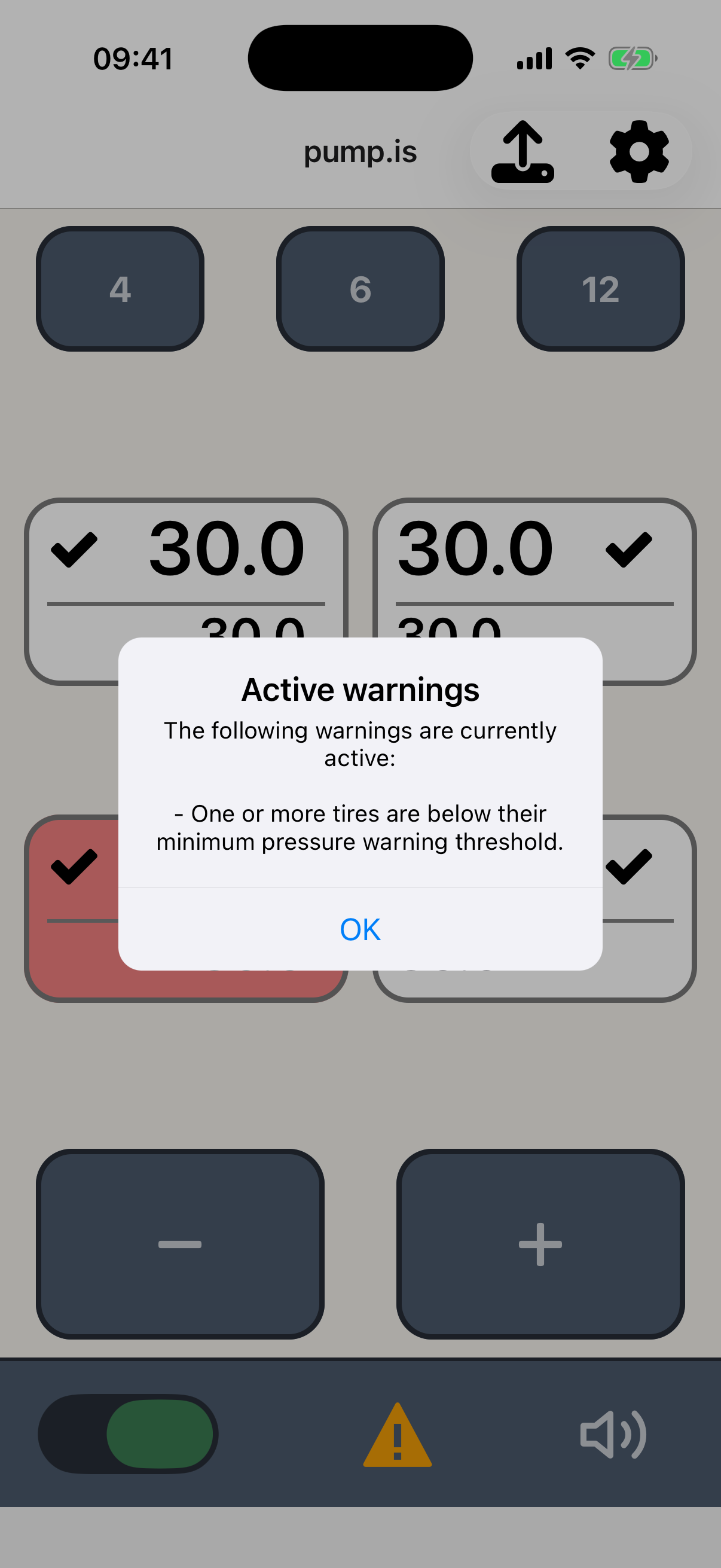
Tap the triangle for details
If the warning sounds an alarm, tap the loudspeaker in the lower-right corner to silence the current alarm. It sounds again only if the warning state changes. To disable alarm sounds entirely, use Settings.
Selecting tires
Tap a tire to select it. The pressure buttons and presets now affect only that tire. Tap more tires to build a group; tap the selected tires again to return to controlling all of them.
This is how you run different front and rear pressures: select the front tires and set their target, then select the rear tires and set theirs.
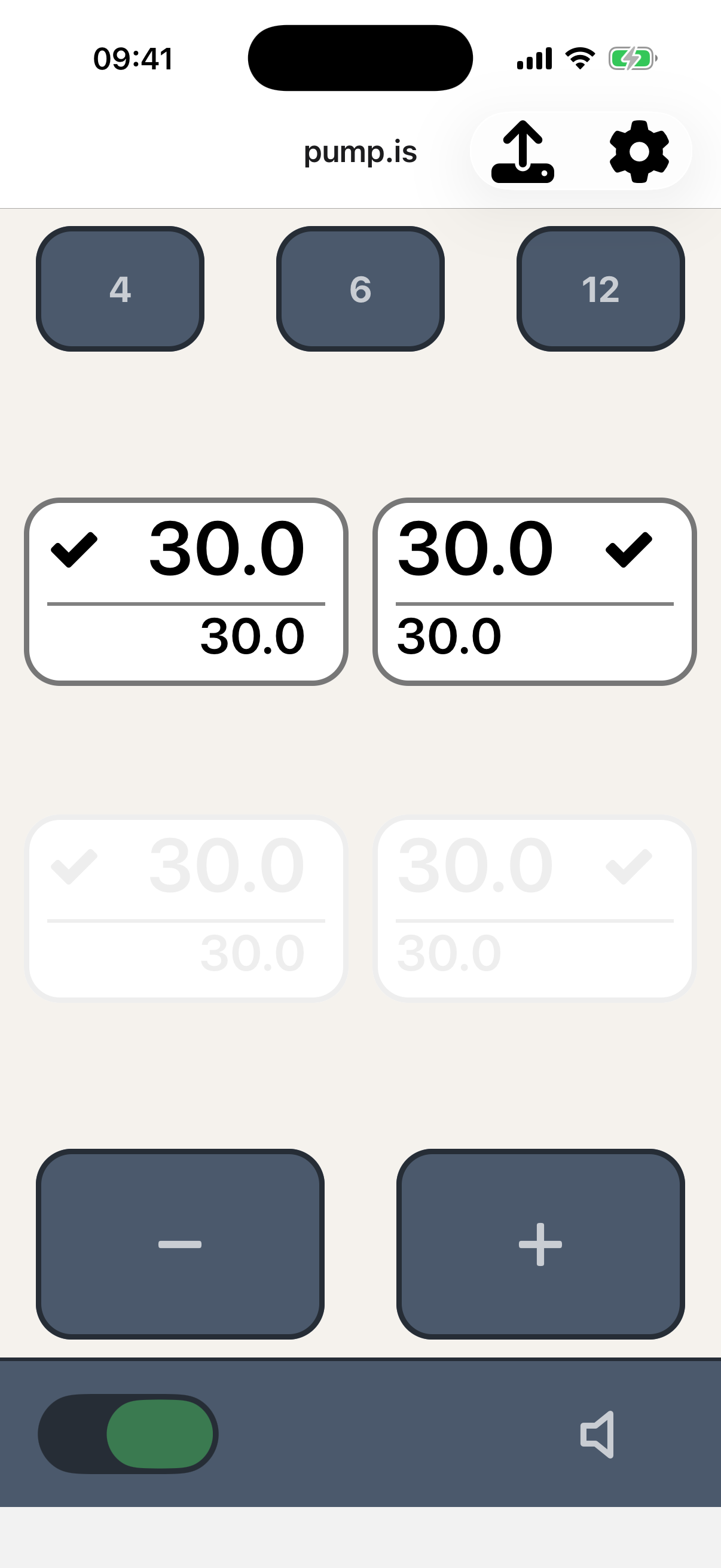
Front tires selected
Locking tires
Press and hold a tire to lock it. A lock icon appears and the controller leaves that tire entirely alone until you press and hold it again.
This is useful if you have closed off one tire, for whatever reason, but still want pump.is to manage the rest.
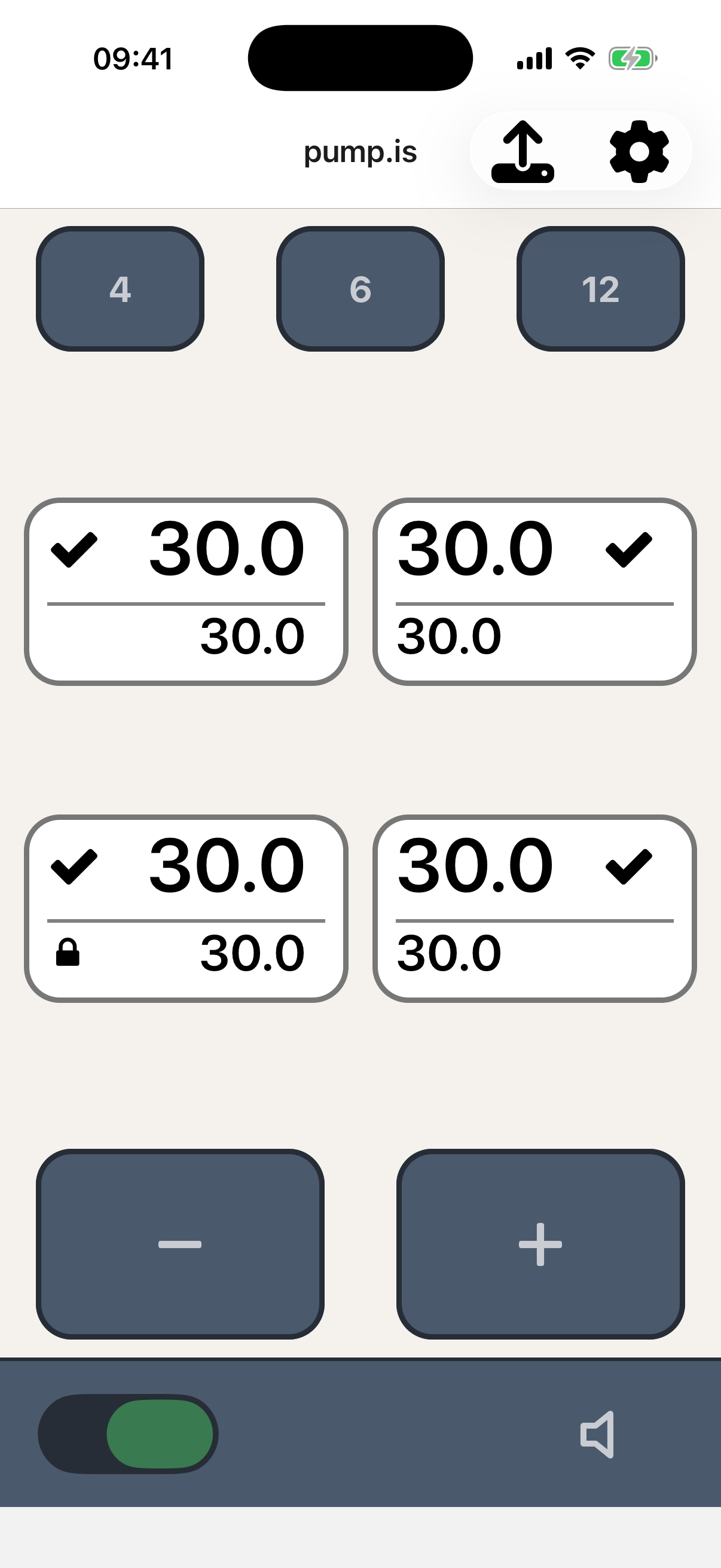
One tire locked
Header icons
The gear opens Settings. The upload icon opens Firmware updates; a red dot on it means an app or main controller update is available.
If the connection drops
The app dims the main screen and shows a disconnected indicator while it tries to reconnect. It recovers on its own once the controller is back in range.
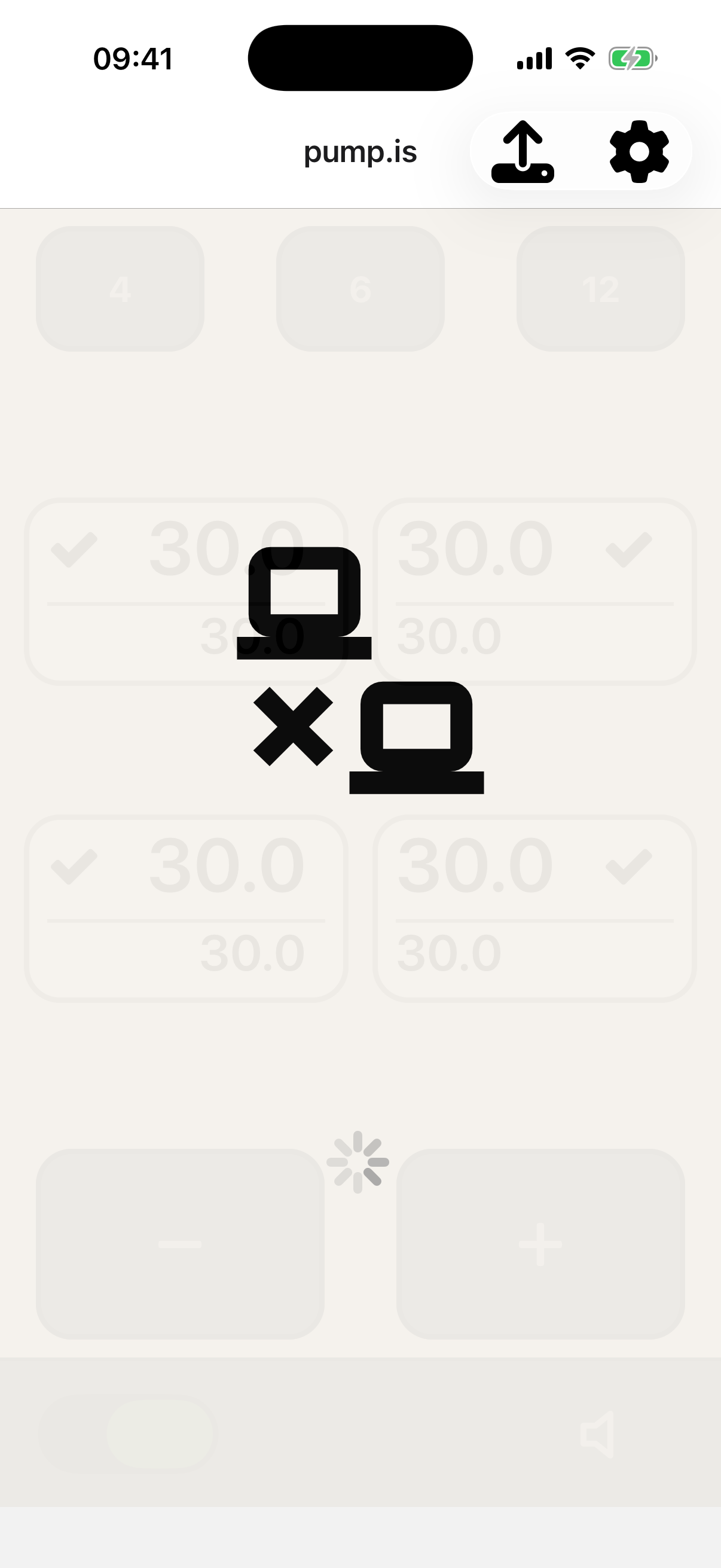
If it does not reconnect, work through The app can’t find my device.