Open Settings with the gear in the top-right corner of the main screen. Most systems work best with the defaults; this page points out the settings you may actually want to change.
Everyday preferences
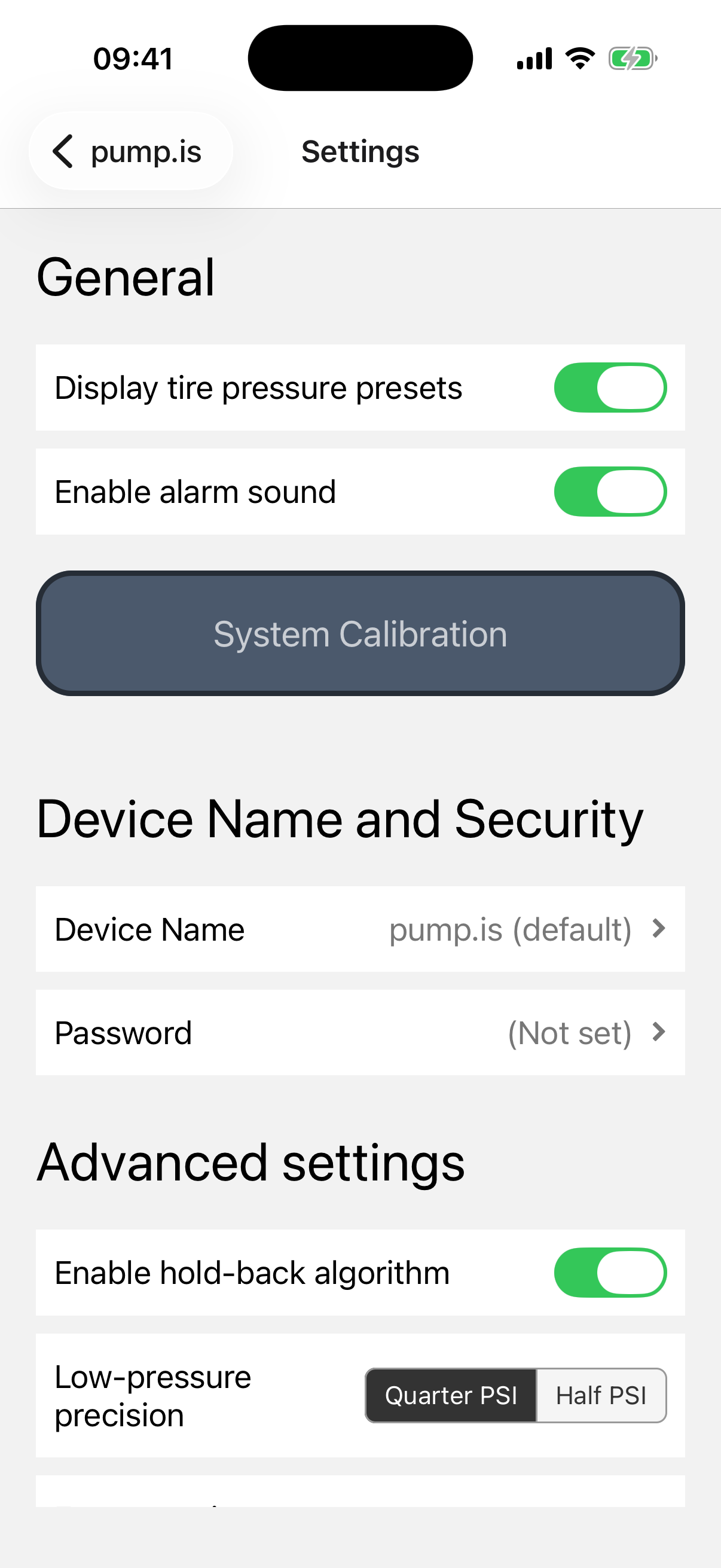
- Display tire pressure presets shows or hides the three shortcuts at the top of the main screen. Hide them if you prefer a cleaner screen.
- Enable alarm sound is the master switch for audible alarms. Warnings still appear when it is off. The loudspeaker on the main screen only mutes the current alarm; this setting keeps future alarms quiet too.
System Calibration
Use System Calibration when setting up the vehicle or after a meaningful change to the compressor, tires, or air system. It covers tire inflation, deflation, air suspension, and maximum tire pressure.
Device Name and Security
These controls appear while the app is connected to the controller.
Give the device a name
Device Name changes how this pump.is system appears during connection. This is most useful when you operate more than one vehicle or controller.
Names can be up to 15 characters. Without one, the device appears as
pump.is (default). Restart the controller after changing or clearing the
name so it starts advertising the new one.
Add or remove a password
A password prevents an unknown phone from connecting to the controller. Once set, it is required on every phone or tablet that connects—not just the one used to create it.
Write the password down somewhere sensible. Removing it makes the controller available to anyone in Bluetooth range, and the app asks you to confirm first.
The Password Required overlay
When a phone connects without a saved password, the app pauses at Password Required. Enter the password and tap Submit.
If it has been forgotten, tap Forgot password?. Email the device address
shown there to info@pump.is and we’ll send you a recovery code.
Advanced settings
These settings change how the controller responds to pressure differences. The defaults suit most vehicles. Leave them alone unless you are solving a specific behavior you understand.
Hold-back algorithm
Enable hold-back algorithm is on by default. When several tires inflate at different speeds, it pauses any tire that gets roughly 2 PSI ahead of the slowest. The set then reaches the target together instead of one tire finishing far ahead of the rest.
Leave this on unless you specifically want every tire to reach its target as quickly as it can on its own.
Low-pressure precision
Choose Quarter PSI (default) or Half PSI. Quarter PSI makes finer corrections at low pressure; Half PSI ignores the smallest differences and can reduce unnecessary cycling.
Try Half PSI only if the controller seems to fuss over tiny changes at low pressure.
Expert settings
Expand Expert settings only if the controller is clearly over- or under-reacting for your setup.
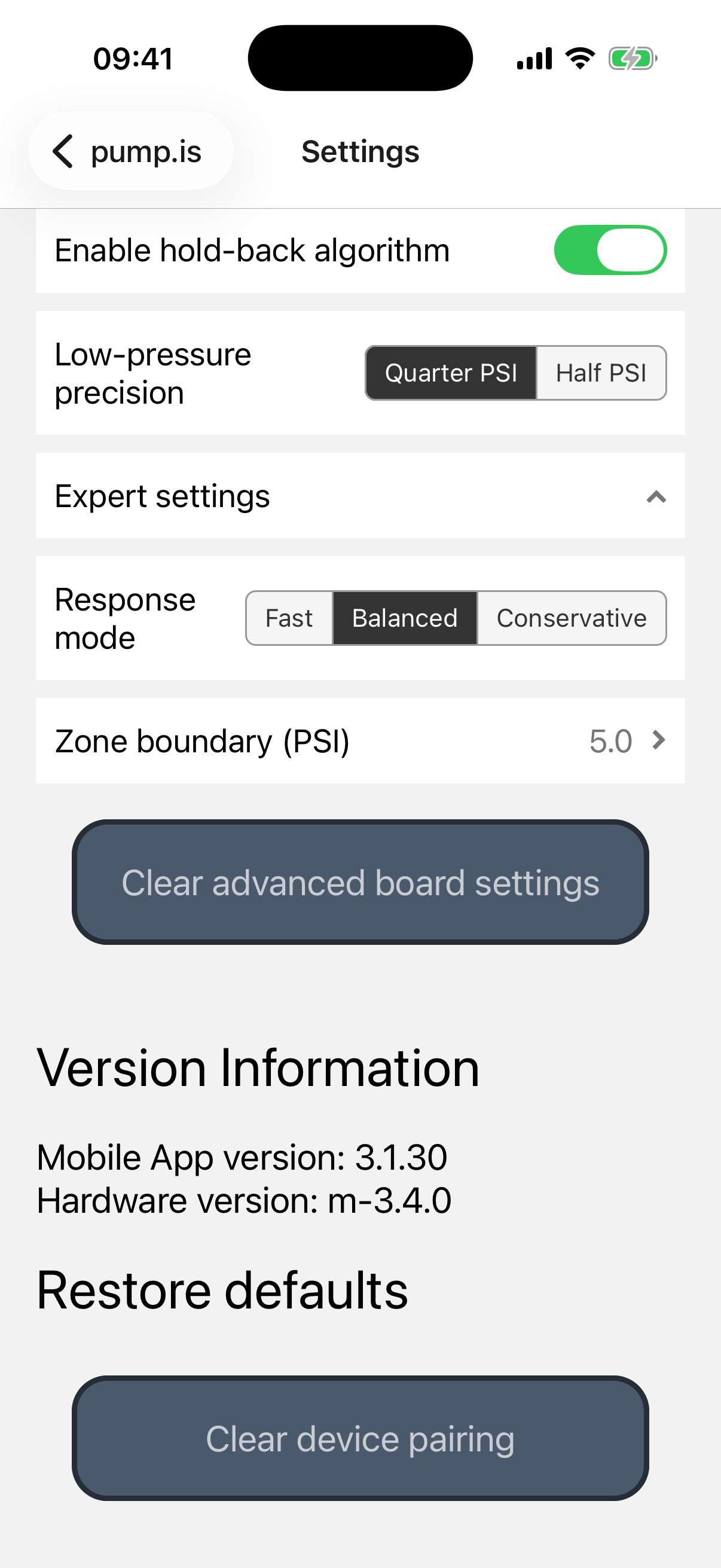
- Response mode chooses how readily the controller acts. Fast responds sooner but may react to noisier readings. Conservative waits for more confidence and tolerates a little more drift. Balanced is the default.
- Zone boundary is 5 PSI by default. Below it, the controller uses its finer low-pressure behavior and the Low-pressure precision setting above. It can be adjusted from 2 to 15 PSI.
Clear advanced board settings returns all advanced and expert settings to their defaults after confirmation.
Version Information
This section shows the mobile app version and the connected controller’s firmware version. Include these when asking for support; they quickly tell us which features and fixes are available on the system.
Restore defaults
- Clear device pairing makes the app forget its current controller.
- Clear application settings removes the pairing and all app preferences.
Both actions ask for confirmation and then exit the app. Reopen it and connect again when you are ready.