The pump.is app is available for Android and iPhone. The first connection only takes a few minutes.


1. Allow Bluetooth access
The first time you open the app, your phone asks for permission to use Bluetooth. Allow it so the app can find the pump.is device.
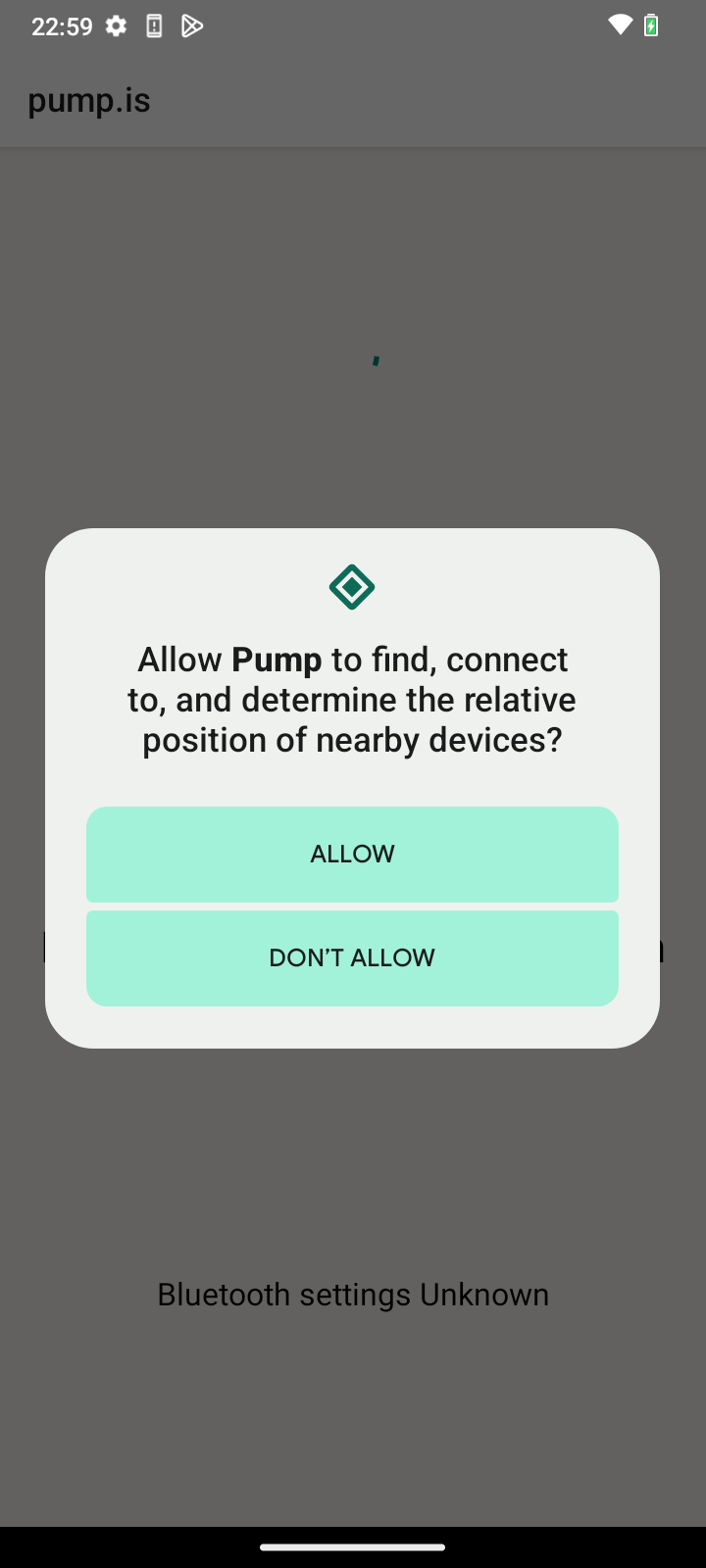
Android
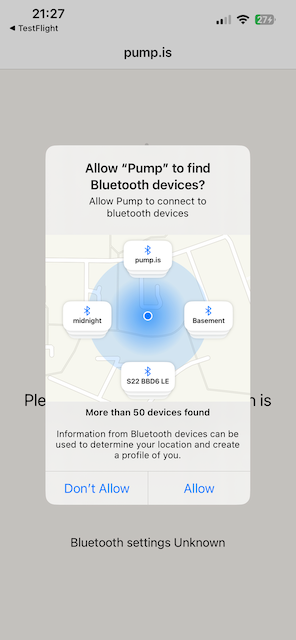
iPhone
Android may ask for location too
This is a weird one, but it is expected. Some Android versions require location permission—and Location Services to be turned on—before an app can scan for Bluetooth Low Energy devices.
The pump.is app does not track your location. Android groups Bluetooth scanning under this permission because Bluetooth can, in theory, be used to work out where a device is.
2. Find your pump.is device
Pair from inside the pump.is app, not from the phone’s Bluetooth settings. Tap Start search, then wait for the device to appear.
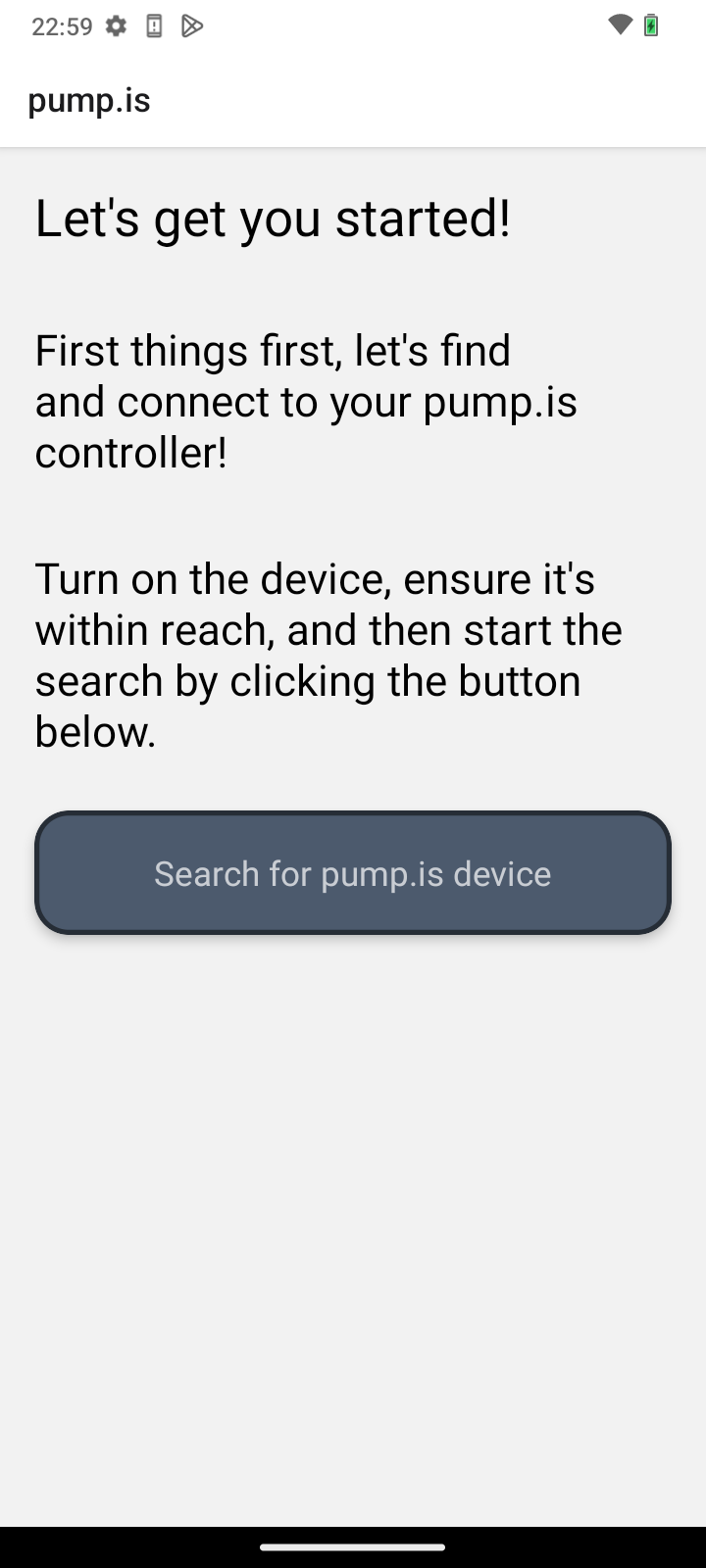
Android
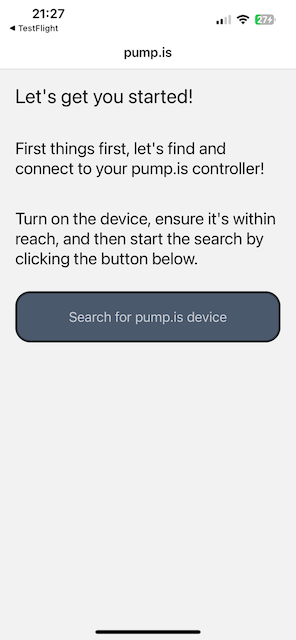
iPhone
Tap the device to connect.
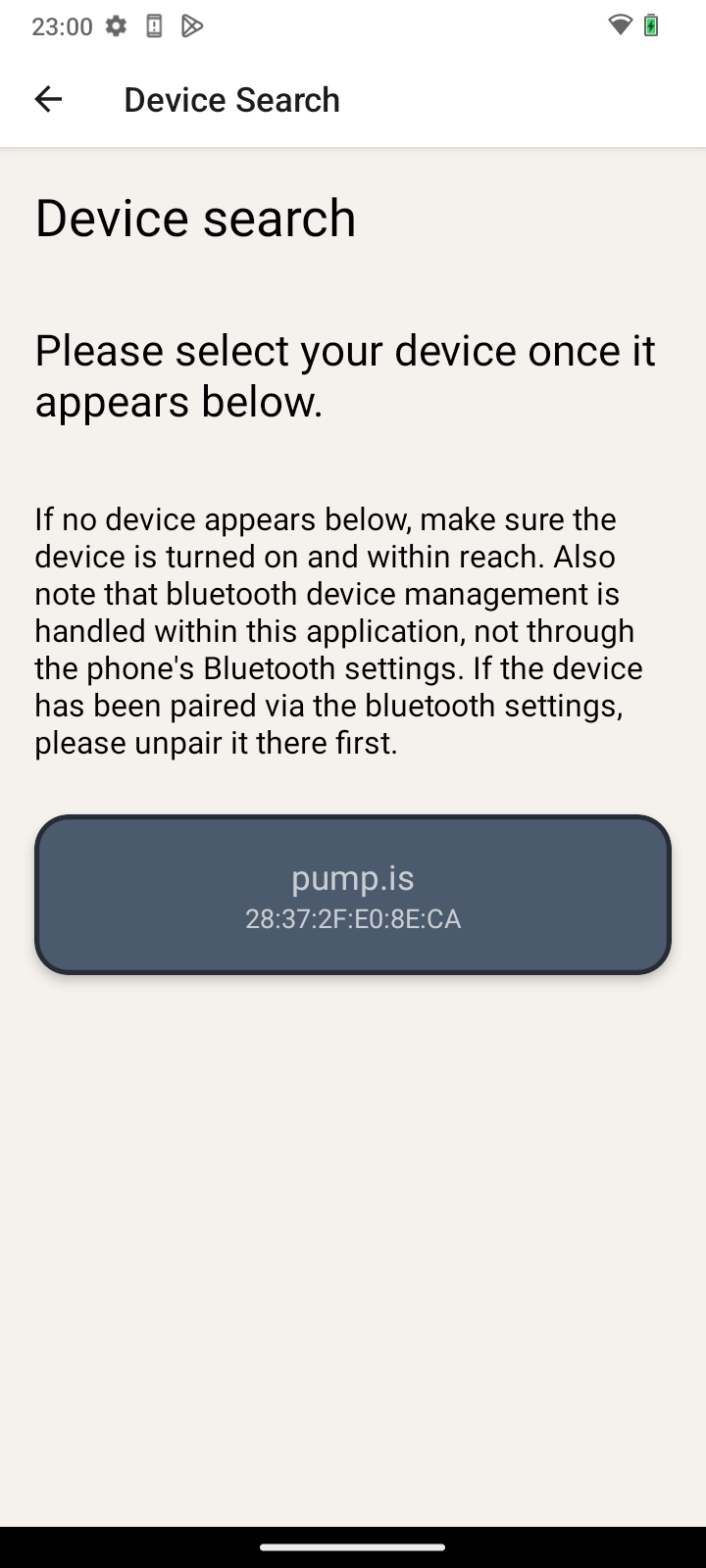
Android
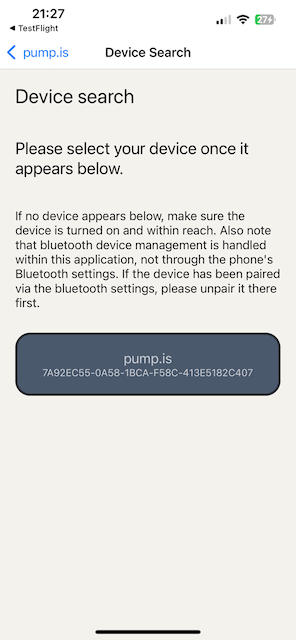
iPhone
If nothing appears, first check that the pump.is system is powered on and nearby. Android also needs Location Services turned on. See The app can’t find my device for the less common causes.
3. Enter a password, if asked
Most systems connect immediately. If this one has a password, you will see Password Required instead.
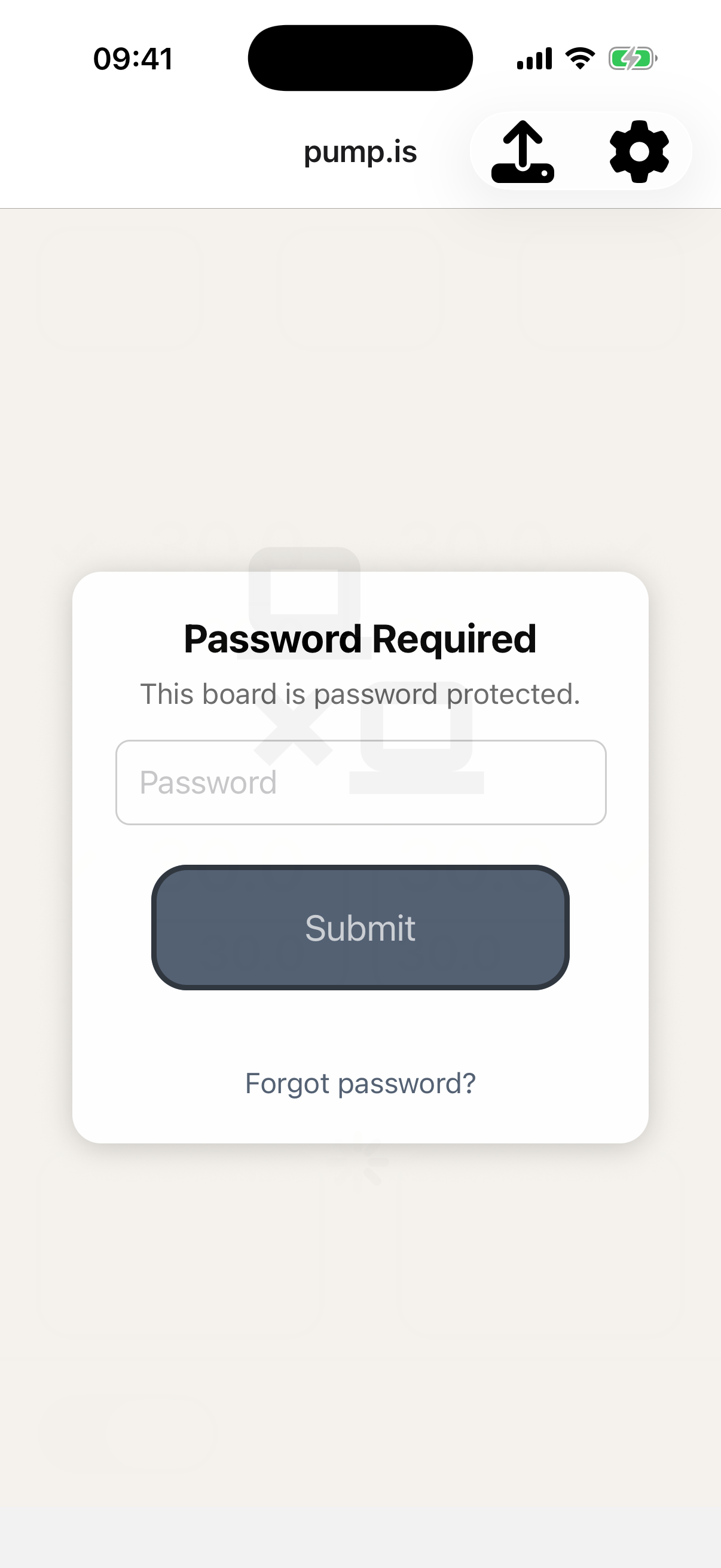
Enter the password and tap Submit. The app remembers it on this phone.
If you don’t know the password, tap Forgot password?. The app shows the
device address; email that address to info@pump.is and we’ll send you a
recovery code.
Connected
Once the configuration has loaded, the main screen appears. That is where you will set pressure and control the system day to day.
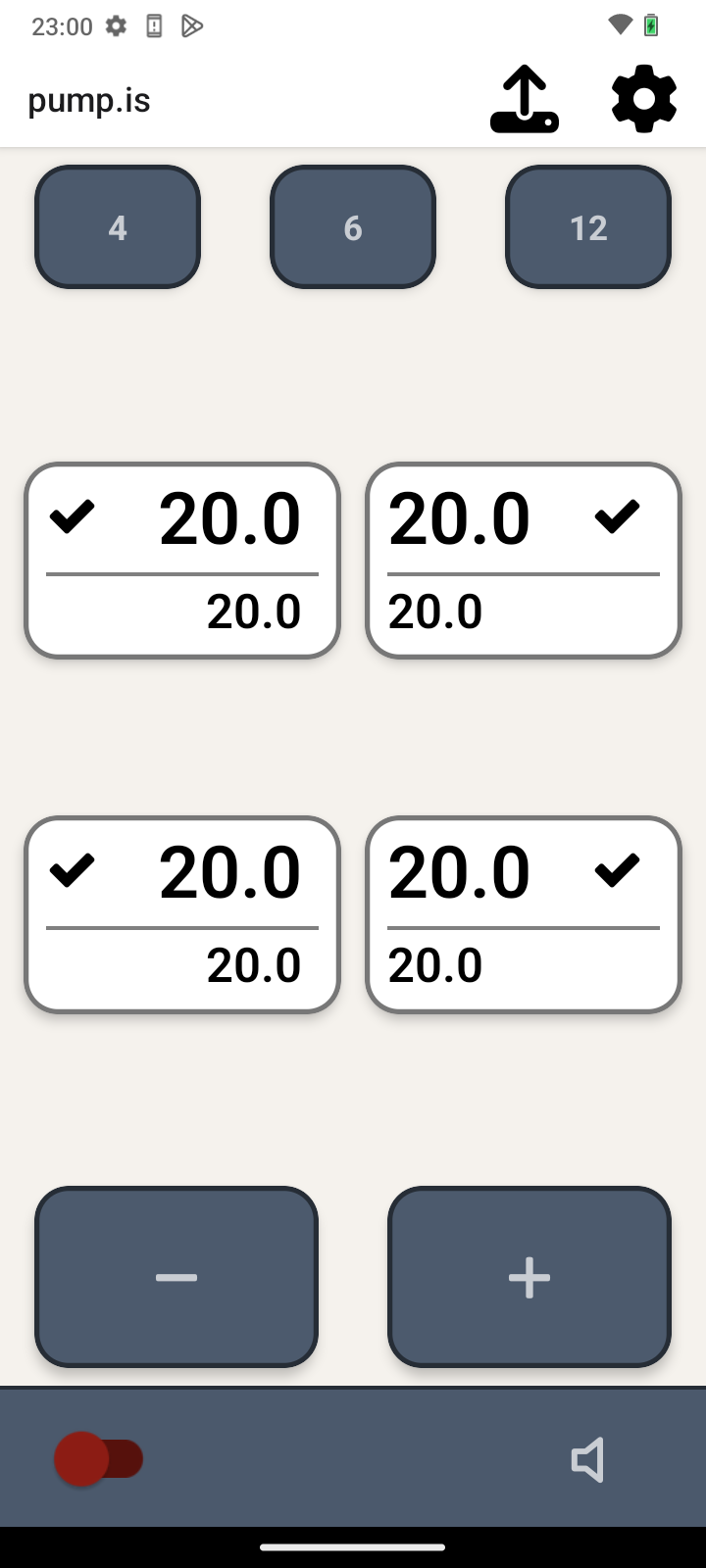
Android
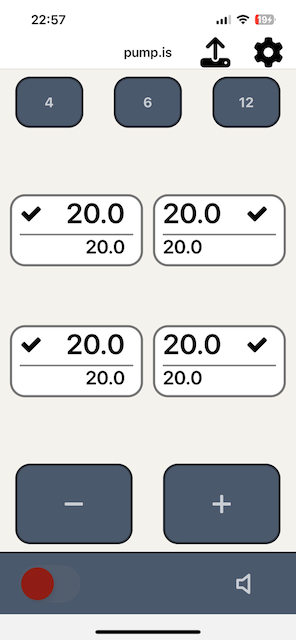
iPhone
If your vehicle has the optional hardware display, it needs no pairing. It is wired directly to the pump.is controller and works alongside the app.